
Returns
The "Return" section of the POS enables merchants to process product returns quickly and accurately, either by referencing the original receipt or processing the return manually without one.
Returning With a Receipt
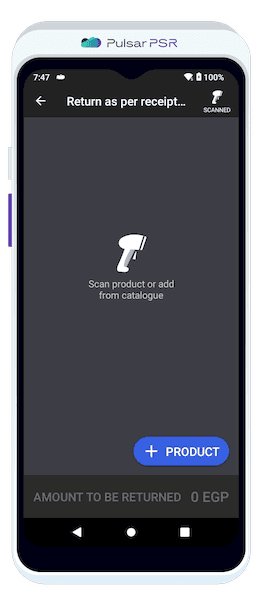
Easily process returns by selecting items from the original transaction and choosing the refund method.
- 🔹Find the Receipt: Use the search bar to enter the receipt number or select it from the list.
- 🔹View Transaction Details: Check the list of purchased items, their quantities, and the total amount.
- 🔹Select Items for Return: Choose specific products or return all items at once.
- 🔹Confirm Refund Details: Review the selected products and verify the refund amount.
- 🔹Process the Return: Select the refund method: cash or bank card.
- 🔹Finalize the Transaction: A confirmation screen will appear. Enable E-Receipt if needed and send a digital copy via email or SMS.
Returning Without a Receipt
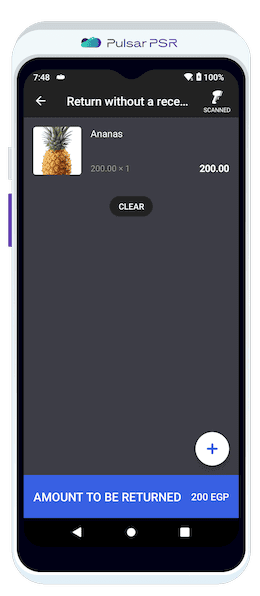
Perform manual returns without a receipt by selecting products, adjusting quantities, and confirming the refund.
Tap "Without A Receipt" to initiate a manual return.
- 🔹Tap "Without A Receipt" to begin.
- 🔹Select Products: Use the product catalog, barcode scanner, or manual price entry.
- 🔹Adjust Details: Modify quantities and verify refund amounts.
- 🔹Choose Refund Method: Process the return via cash or bank card.
- 🔹Complete the Return: Issue an e-receipt if needed and close the transaction.