
Applications
Installing Applications on a Terminal
Follow these steps to install an application on your terminal:
Navigate to the Applications section.
Select the desired application and click Open.
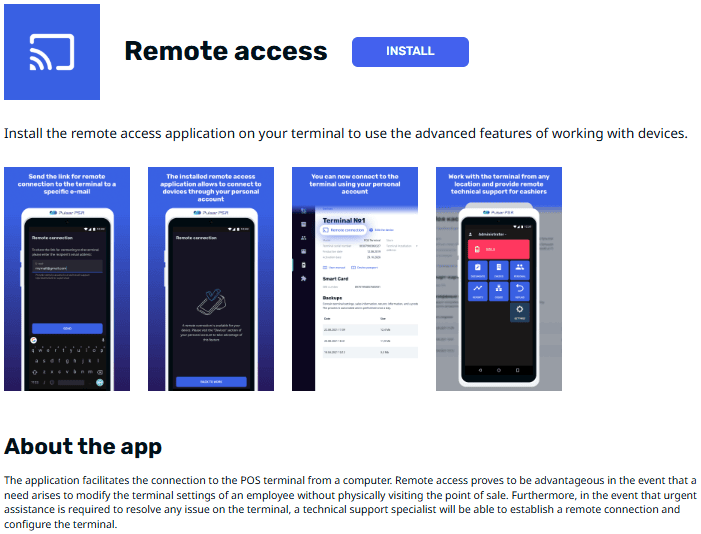
Click Install.
Choose the terminals for installation:
To install on specific terminals, tick the checkbox next to each terminal's name.
To install on all available terminals, tick the checkbox next to Device.
Click Install again to confirm. You will see the total number of applications being installed.
Wait until the installation status changes to Installed. The application is now ready for use.
💡 Tip: Ensure that the terminal is online and has sufficient storage space before installing applications.
Deleting Applications from a Terminal
Follow these steps to remove an application from your terminal:
Navigate to the Applications section.
Select the application you wish to remove and click Open.
Choose the terminals from which to remove the application:
To remove from specific terminals, tick the checkbox next to each terminal's name.
To remove from all terminals, tick the checkbox next to Device.
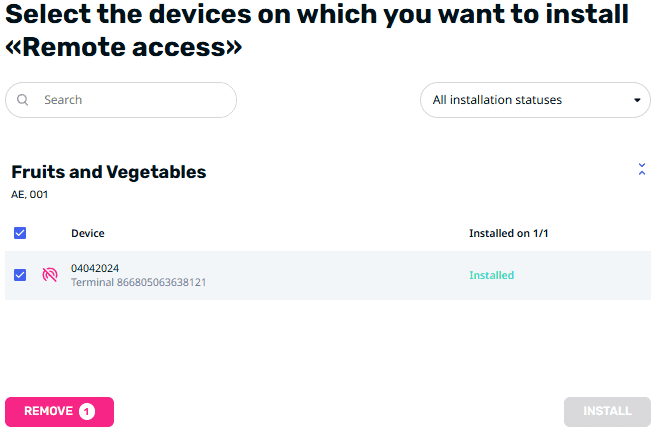
Click Remove. The total number of applications marked for removal will be displayed.
Wait until the removal status changes to Not Installed. The application is now successfully removed.
⚠️ Warning: Removing critical applications may affect terminal operations. Ensure you review your selections carefully before proceeding.