
Stores
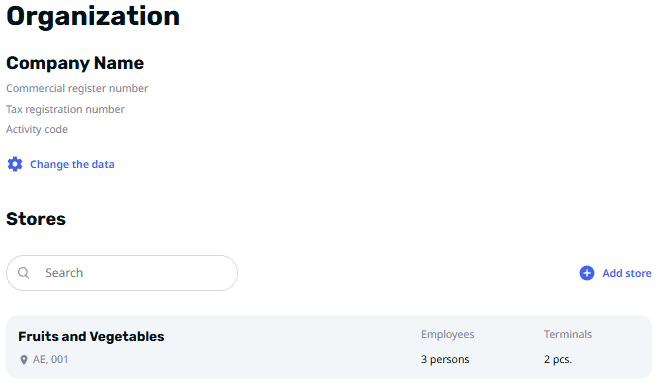
Adding a New Store
Navigate to the Store section in your account.
Click Add Store. Enter the following details for the new store:
- 🔹Name: Enter the name of the store.
- 🔹Branch Code: Provide a unique identifier for the store branch.
- 🔹Address: Specify the country (cannot be changed after registration), province, district, street, building, and number.
Assign employees to the shop by clicking Add Employee and selecting from the list.
By default, an "Administrator" employee will be assigned to the shop.
To create a new employee, follow the guide: "https://learn.psr-it.com/en/customers/section/dashboard/dash_employees".
Bind terminals to the shop by clicking Add Device and selecting the terminals.
📌 Note: Moving a terminal to a new shop updates its stock balance and employee list.
Once all information is added, click Add to save the shop.
Editing Store Information
Go to the Store section. Select the shop you want to edit and click its name. Click Edit Store below the shop's name. Update the following details:
- 🔹Name: Modify the store name if necessary.
- 🔹Branch Code: Update the branch code if needed.
- 🔹Address: Edit any part of the address, including country, province, district, street, building, and number.
- 🔹Employees: Add or remove employees.
- 🔹Devices: Add terminals to bind with this shop.
Click Save to confirm the changes.
Deleting a Store
💡 Tip: Unbind all terminals from the shop before deletion.
- Follow: "How to Change the Terminal's Storehttps://www.notion.so/5-Stores-189bde03f9cf80cf9ae9ef308dc31ba6?pvs=21"
- Navigate to the Stores section.
- Select the store to delete and click its name.
- Click Edit Store below the store’s name.
- Click Delete Store.
- Confirm the action.
📌 Note: This will erase the stock balance and employee list associated with the shop.
📌 Note: You cannot delete the only store
Editing Organization Details
Navigate to the Stores section.
Click  .
.
Enter the following organizational details:
- 🔹Name (required): Enter the official name of your organization.
- 🔹Commercial Register Number: Provide the unique identification number assigned to your organization upon registration with the commercial registry.
- 🔹Tax Registration Number: Enter your organization's official Taxpayer Identification Number (TIN), issued by the relevant tax authority.
- 🔹Activity Code: Specify the official code representing your organization's primary business activity according to the International Standard Industrial Classification (ISIC).
Click Save to confirm the updates.