
Employees
Employee Management
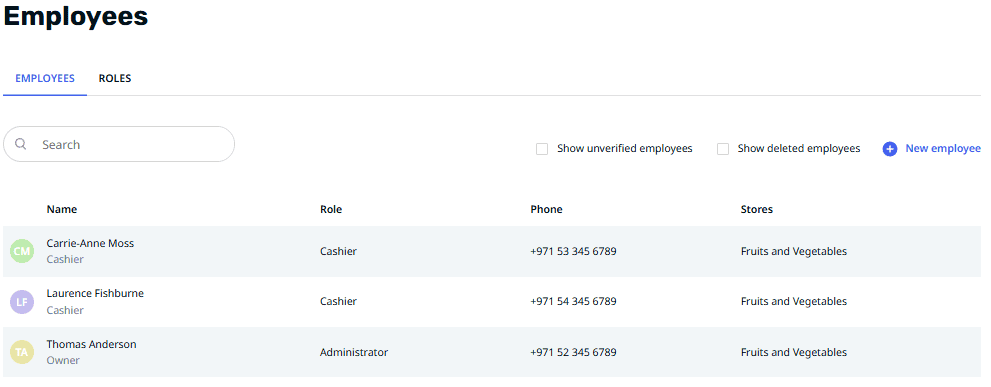
In this section, you can manage all your employees, their roles, phone numbers, and the shops they are assigned to. You can also view and manage employees who have been deleted.
Creating a New Employee
Navigate to the Employees section.
Click New Employee.
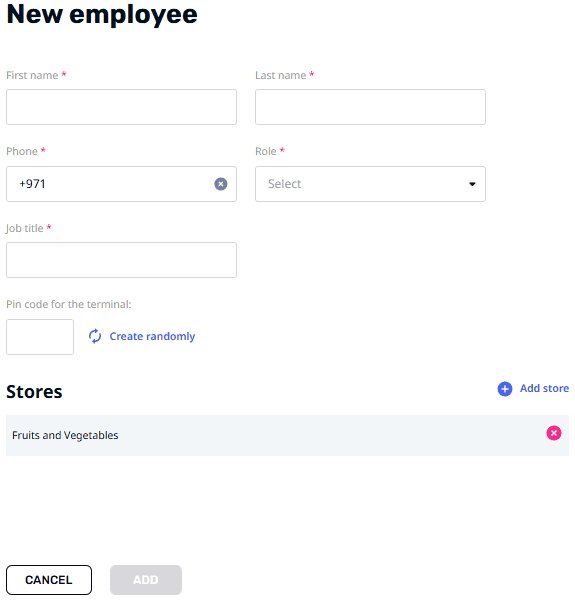
Fill in all required fields marked with a red star (*).
Assign the employee to one or more shops by clicking Add Store.
💡 Tip: To create a new store, see: "https://learn.psr-it.com/en/customers/category/stores".
Optionally, assign a PIN code to the employee for added security.
By default, the employee will have an "Administrator" role.
To set restricted permissions, create a new role using: "How to Create Employee’s Role" below.
Click Add to save the new employee.
Verifying Employees
Create an employee on the terminal or through the application. Unverified employees appear in gray and can be found by clicking Show Unverified Employees. Select the unverified employee from the list on the terminal.
💡 Tip: Verify the employee within 5 days; otherwise, they will be automatically removed.
Managing Employee Information
Navigate to the Employees section.
Select the employee and click on their name.
Click Edit Employee.
- To Edit Information: Update the necessary fields and click Save to confirm the changes.
- To Delete an Employee: Click Delete an employee and confirm the action.
Managing Employee Roles
Navigate to the Employees section.
Click the Roles tab.
Creating a New Role
- Click New Role.
- Enter the role’s name and assign permissions from the following categories:
- 🔹Selling: Adjust prices, apply discounts, register free-price items.
- 🔹Returns: Process returns with or without receipts.
- 🔹Cash Handling: Manage cash-in and cash-out operations.
- 🔹Goods Management: Edit product data, perform inventory checks, accept deliveries, revalue goods, process returns to suppliers, and write off items.
- 🔹Reports: Access sales, purchases, and gross profit reports.
- 🔹Settings: Adjust terminal settings and manage data exchange.
- Click Create to save the role.
Modifying Role Functionalities
- 🔹Select the role and click on its name.
- 🔹Click Edit Role.
- 🔹Update the permissions as needed.
- 🔹Click Save to apply the changes.
Deleting an Employee’s Role
📌 Note: Ensure no employees are assigned to the role.
- 🔹Navigate to the Employees section.
- 🔹Click the Roles tab.
- 🔹Select the role and click its name.
- 🔹Click Edit role.
- 🔹Click Delete role and confirm.